



USER GUIDE
1. Waveform Navigation
2. Toolbox
3. Local Audio Gallery
4. Browser (iPad)
5. DISK Files
6. Record Internal
Audio files are displayed as a waveform in the main workspace.
All navigation is designed to work with one finger. Pinch gestures are not required.
The main waveform area is divided into two sections:
• Top Area — Zoom and Navigation
• Bottom Area — Selection
A global overview waveform is displayed below the main waveform.
Top Area — Zoom and Navigation
Use one finger:
• Drag up / down to zoom in or out
• Drag left / right to move along the waveform
Bottom Area — Selection
Use one finger to create and edit selections.
• Drag left / right to create a selection
• Drag an existing selection to move it
• Drag selection edges to resize
Gestures:
• Single tap — Clear selection
• Double tap — Select the entire waveform. If markers are present, double tap selects the region between adjacent markers
2. Toolbox
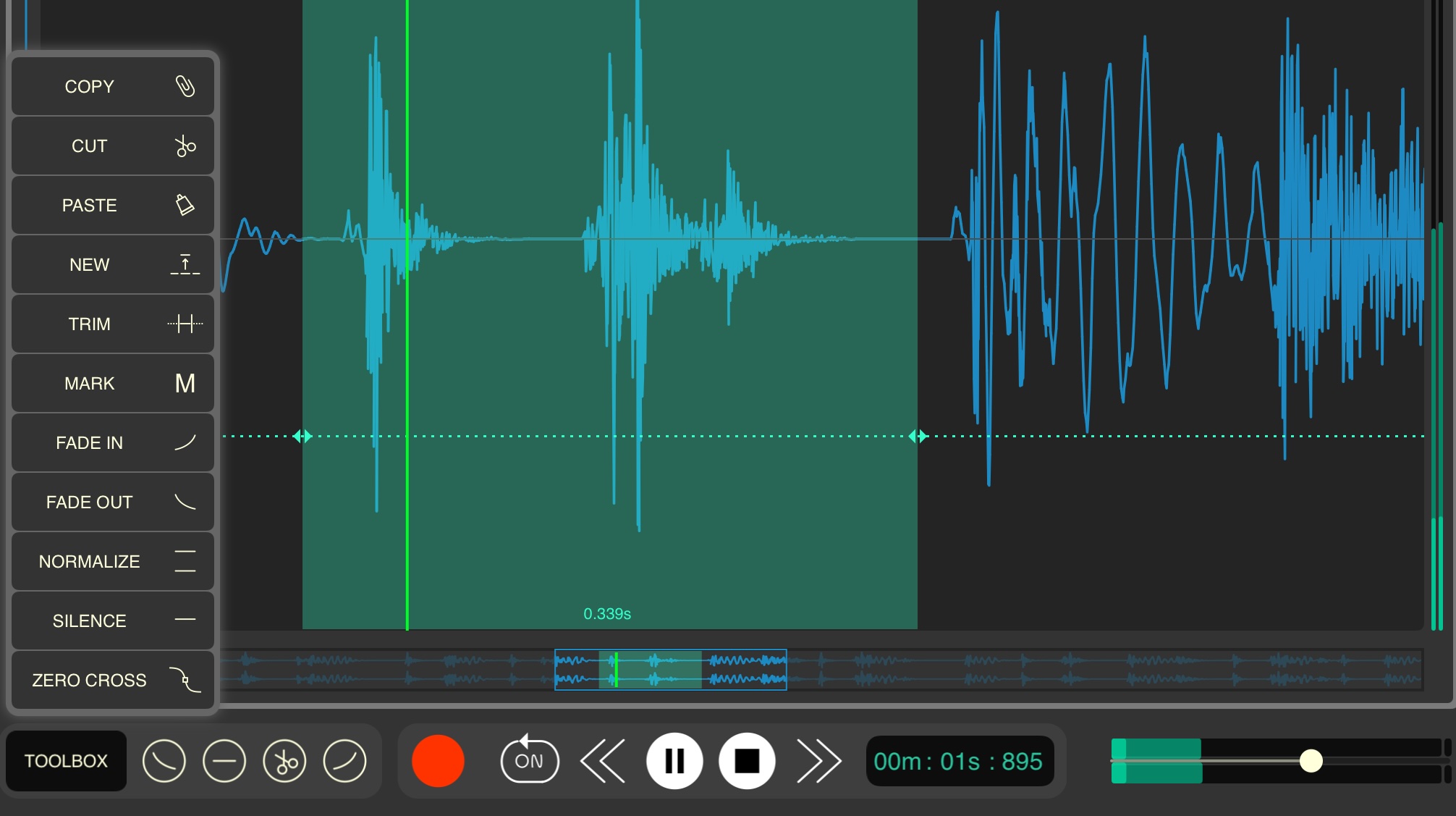
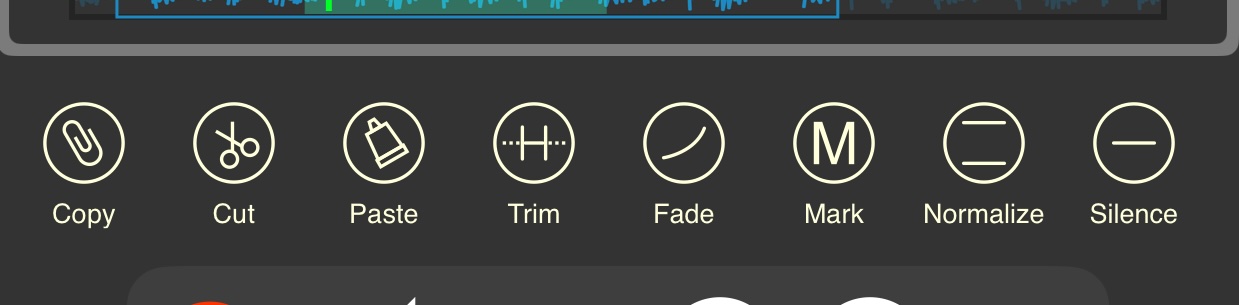
Basic editing functions are accessed directly through their dedicated buttons.
On iPad, tools are accessed via the Toolbox panel.
The Toolbox automatically displays buttons for the most recently used functions.
Some Key Functions:
• New → Create a new file from the selected area
• Trim → Delete all waveform outside the selected area
• Fade → Opens the Fade panel
• Mark → Insert a mark
• ZeroCross → Snaps selections to zero-cross positions
3. Local Audio Gallery
Audio files are stored in the app’s local gallery.
You can add additional folders from:
• On-device storage
• Cloud services (e.g. Drive)
These locations are linked to Wavebox.
Files are not copied into the app. Closing a linked location from the gallery does not delete its contents.
Deleting Files
When a file is deleted from the local gallery or any linked location, it is moved to Trash and removed from its original location.
Trash
Trash can be accessed using the corresponding button.
Files remain in the Trash for 15 days, then they are permanently deleted.
Gallery Playback
When an audio file is selected, it can be played directly from the gallery without opening the editor.
A menu with playback options is available:
• Loop Selected File → Repeats the current file continuously
• Jump to Next File → Automatically plays the next file when the current one finishes
4. Browser (iPad only)
In the main workspace, you can open the Browser alongside the waveform editor.
The Browser supports multiple locations, similar to the Local Audio Gallery.
Files can be previewed directly in the Browser, like in the gallery.
Effect Prelisten
If a built-in effect or an AUv3 plugin is active, you can preview audio with the effect applied. This option can be enabled or disabled in the Browser’s playback settings.
Drag & Drop from Browser
Audio files can be dragged from the Browser to the workspace.
• Drop on empty space → The file opens normally for editing
• Drop on an existing audio clip (highlighted areas) → The file is merged with the existing clip
5. Disk Files
Long audio files can be read directly from disk, which reduces RAM usage. However, editing may be slower, and the number of undo steps is limited.
In the main view, use the button in the top-left corner to open the Settings view. There, you can use a slider to set the minimum file size for disk files:
• Lower value → Less memory usage
• Higher value → Faster editing
6. Internal Recording
Wavebox can record system audio on iOS without loss, without creating unnecessary video files.
.Useful for sampling audio from multiple sources
To start internal recording:
→ Tap Record Internal to open the capture panel
iOS manages the recording, so a confirmation window appears
→ Press Start Broadcast to begin capturing system audio
To stop recording:
→ Use the red iOS recording indicator at the top
→ Or tap Stop in the capture panel and Stop Broadcast.
If no audio is playing (from apps, browsers, etc.), no file will be created